Here we are – our first snow day and hopefully our LAST…though my son sent me an image of the next five day forecast and all I saw was SNOWFLAKES 😦
Since I had some extra time, I searched around for what I could share. Many of us are using Kahoot, Quizizz, and Pear Deck for formative assessment. I’m a spreadsheet gal and love the summary sheets I get easily from Kahoot and Quizizz. You can get similar results with PearDeck using Flubaroo. I’ve showed some of you Flubaroo when I taught the online Google classes. Here’s a video on how to use Flubaroo with Pear Deck. Enjoy!
It’s been a VERY busy year! I’ve been playing around with several formative assessment tools and thought I’d share. We’ve used Pear Deck, Google Forms, and Haiku to inform our instruction and each has its strengths. I recently have been playing with Kahoot and just heard about Quizziz.
What I really liked about Kahoot was the data that is generated and the engagement of my students. Each answer is timed and you can choose anywhere from 30 seconds to 2 minutes. That works in some cases but not all. That’s where Quizziz comes in. Quizziz allows from 30 seconds to 5 minutes for each question. What I really like about Quizziz is that students work at their own pace. The teacher can view the data as the students are working so if I see that a student is struggling I have the time to go over and help him/her.Both give data that can be downloaded as an Excel spreadsheet with information about EACH question – very, very cool!
Take a look at the following video for what Kahoot has to offer. Then watch the video about Quizziz. Both platforms have public quizzes so you can search for a specific topic. In Kahoot, you can duplicate the quiz and modify to your heart’s content. In Quizziz, you can choose individual questions from various public quizzes. I really like that idea! 21st century is all about sharing and collaboration and that’s exactly what you’ll find in both platforms.
Here is a really cool way to use YouTube, Khan Academy, and Vimeo video with your students. As the video displays students can take notes. The notes are automatically uploaded to their Google Drive and can be shared. Take a look at the video for more information on http://www.videonot.es/
I showed you Zaption – now here’s eduCanon. It’s another interactive video tool. Have fun exploring and choose the right tool for YOUR classroom! See the video below and a link to eduCanon’s blog below. As with most educational tools, there is a free version and a premium.
Hi everyone,
Hope you’re enjoying a well-deserved break! I’ve been “playing” and wanted to share a really cool tool with you.
You know how attempting to read articles on the Internet results in ads all over the page – frustrating, don’t you think? Example below:
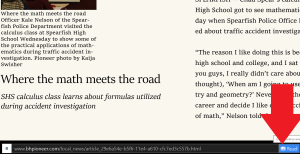
Well, there IS a solution if you are using the Interne Explorer tile from Windows 8. Look next to the URL at the bottom of your page for a READ button. Click it and voila:
I believe this solution is strictly for the IE tile in Windows 8. I haven’t found it in the regular IE browser. If I do, I’ll let you know 🙂
One of the teachers in an online class that I’m teaching mentioned a site called Zaption so, of course, I had to explore. I will preface this by saying that I am in no way an expert BUT I AM excited! This is what you can do: Find a video on the topic you are teaching. You can search through YouTube, Vimeo, TED, Discovery, National Geographic,… You can preview, create new tour or add to My Videos.
NOW comes the fun part! When you create a new tour, you can stop the video at various points and create interactive questions. . . free response, multiple choice, etc. Now when you show the video it will pause at that spot and display the question in a side bar. There are analytics that come with the free version but I haven’t had time to explore that as yet. . . just found this last night but I could not wait to share!
The free version allows you to:
Watch as many video lessons as you like
Find great educational videos from YouTube and Vimeo
Create your own video lessons using 6 interactive elements with a single video
Share lessons with your students and friends
Track viewer progress and responses with detailed analytics
Copy and edit ready-to-use video lessons from the Zaption Gallery
Watch the video to get a better idea. Sorry I didn’t zap it 😦
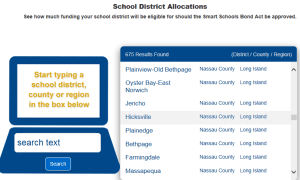
The SMART Schools Bond Act passed on November 4th. Two billion dollars will be allocated and districts may apply to spend the bond money on new equipment such as:
interactive whiteboards
computer servers
desktop, laptop, iPads, and other tablet computers
Installing high-speed broadband or wireless services for better internet access
Install high-tech security features inside buildings or on campus
Modernize educational facilities to accommodate pre-kindergarten programs
Hi Everyone!
Can’t believe we’re almost through the first quarter! Sorry it’s taken me so long to welcome you all back!
I’m sure I’ve written about PBS Learning Media before but some sites bear repeating. I was coming back from Albany Friday on a bus. Since there was no internet I was searching through my computer and found a video I downloaded last year that I had forgotten all about – Batman and Signed Numbers. It had been downloaded from PBS.
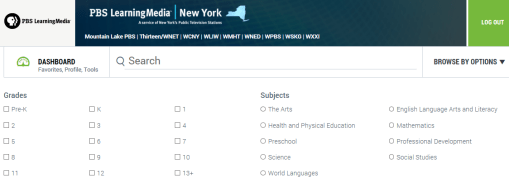
PBS Learning Media is a FREE site that includes quality lesson plans for Pre-K through College in multiple subject areas as seen below.
But there’s more! Professional development activities including free webinars abound. We are so fortunate to be teaching at a time where we can collaborate and learn from teachers all over the world. It’s worth a look. Go to http://www.pbslearningmedia.org/ and enjoy!
 Hi everyone! (editing this post… the free version only allows for a limited number of flyers) 😦



 M-TRACT